How to Use Git and GitHub for Version Control
In today’s rapidly evolving software development landscape, version control is a fundamental skill that every developer must master. Whether you are working on personal projects, contributing to open-source initiatives, or developing enterprise-level applications, understanding version control with Git and GitHub can significantly streamline your workflow, enhance collaboration, and improve code quality. In 2025, version control remains as crucial as ever, and this comprehensive guide will equip you with the knowledge and skills to effectively use Git and GitHub for all your version control needs.
- Understanding the Basics of Version Control
- Installing Git and Setting Up Your Environment
- Creating and Initializing a Git Repository
- Making Your First Commit
- Understanding Branches and Why They Matter
- Merging Branches and Resolving Conflicts
- Working with Remote Repositories on GitHub
- Pull Requests and Collaborative Workflows
- Using Git Tags and Releases
- Exploring Advanced Git Commands
- Integrating Git with CI/CD Pipelines
- Best Practices for Using Git and GitHub
- Conclusion: Mastering Git and GitHub for Modern Development
- More Related Topics
Understanding the Basics of Version Control
Before delving into the specifics of Git and GitHub, it is essential to grasp the concept of version control. Version control systems (VCS) track changes to files over time, allowing multiple developers to collaborate on a project without overwriting each other’s work. Git is a distributed VCS, which means each developer has a complete copy of the project history on their local machine. This architecture enables efficient branching, merging, and collaboration.

Installing Git and Setting Up Your Environment
To get started with Git, you must first install it on your machine. Git is cross-platform and supports Windows, macOS, and Linux. You can download the official Git installer from its website and follow the installation instructions. Once installed, configure your Git username and email using the commands git config --global user.name "Your Name" and git config --global user.email "you@example.com". These details will be associated with your commits for identification purposes. Additionally, familiarize yourself with a terminal or a Git GUI tool, which can make your version control experience more efficient.
Creating and Initializing a Git Repository
A Git repository is a directory where your project files and version history are stored. To create a new repository, navigate to your project folder in the terminal and run the command git init. This command initializes a new Git repository and sets up the necessary files and directories. If you want to clone an existing remote repository, use the git clone command.
Making Your First Commit
A commit is a snapshot of your project at a particular point in time. To create your first commit, add the files you want to track using the git add command or git add . to add all files in the current directory. Once the files are staged, run git commit -m "Your commit message" to create a commit. Writing meaningful commit messages is vital for maintaining a clear project history, so take the time to provide concise and descriptive messages for each change.
Understanding Branches and Why They Matter
Branches are an integral part of Git, allowing you to work on different features, fixes, or experiments without affecting the main codebase. The default branch is typically named main or master. To create a new branch, use the git branch command, and switch to it using git checkout . Branching strategies, such as Git Flow or trunk-based development, are commonly used in 2025 to manage multiple features simultaneously and reduce conflicts during merges.
Merging Branches and Resolving Conflicts
Merging is the process of combining changes from one branch into another. To merge a branch into the current branch, use the git merge command. Conflicts may arise during merging if there are overlapping changes in the same file. In such cases, manually resolve the conflicts by editing the affected files, and mark them as resolved using git add . Properly understanding and handling merges and conflicts is crucial for collaborative development.
Working with Remote Repositories on GitHub
GitHub is a cloud-based platform that allows developers to host remote repositories, collaborate with teams, and manage project contributions. To connect a local repository to a GitHub remote repository, create a new repository on GitHub and use the git remote add origin command. Push your commits to the remote repository using git push -u origin main. Remote repositories play a vital role in modern software development by enabling collaboration across time zones, tracking contributions, and providing code backup.
Pull Requests and Collaborative Workflows
Pull requests (PRs) are a powerful feature of GitHub that facilitate collaboration by allowing team members to propose changes to a project and request reviews before merging. PRs enable discussion, code review, and automated checks to ensure code quality. In 2025, pull request templates and AI-powered review tools streamline collaboration by automatically highlighting potential issues and suggesting improvements. Learn how to create, review, and merge pull requests for efficient teamwork.
Using Git Tags and Releases
Tags in Git mark specific points in a project’s history, often used for versioning or milestones. Lightweight tags are simple pointers, while annotated tags include additional metadata like the author and date. You can create tags using the git tag command and manage them with related subcommands. GitHub provides a user-friendly interface for creating releases based on tags, which helps communicate stable versions to users and developers.
Exploring Advanced Git Commands
Once you are comfortable with the basics of Git, it is time to explore some advanced commands that can make your development workflow even more efficient. Commands like git rebase allow you to reorganize commit history, git stash temporarily saves your changes without committing, and git cherry-pick enables you to apply specific commits from one branch to another. Advanced users also leverage git bisect to perform a binary search through commit history to identify issues.
Integrating Git with CI/CD Pipelines
Continuous Integration (CI) and Continuous Deployment (CD) are now standard practices in modern software engineering. GitHub Actions and other CI/CD tools automate testing, building, and deployment based on changes in the repository. Integrating Git with CI/CD pipelines ensures that your code is consistently tested, validated, and deployed to production. In 2025, AI-enhanced CI/CD pipelines offer predictive testing and automated performance optimization.
Best Practices for Using Git and GitHub
To make the most out of Git and GitHub, consider the following best practices:
Commit frequently with clear and descriptive messages.
Keep your branches small and focused on specific tasks.
Regularly pull changes from the main branch to minimize conflicts.
Use descriptive pull request titles and provide context in the descriptions.
Utilize .gitignore files to exclude unnecessary files from version control.
Following these best practices will help maintain clean and organized repositories, making collaboration with others much more manageable, regardless of team size.
Conclusion: Mastering Git and GitHub for Modern Development
Git and GitHub have become essential tools for developers in 2025, and learning to use them effectively for version control is a vital step in any software engineer’s career. This comprehensive guide has covered the fundamental concepts of version control, branching strategies, merges, pull requests, and even integrating Git with CI/CD pipelines. By mastering these skills, you will be well-equipped to handle real-world software projects, collaborate efficiently with teams, and deliver high-quality code. Remember, the more you practice, the more proficient you will become. Start working on your projects, explore real-world repositories, and leverage the power of Git and GitHub to take your development skills to the next level.
 Big O Notation Explained for Beginners
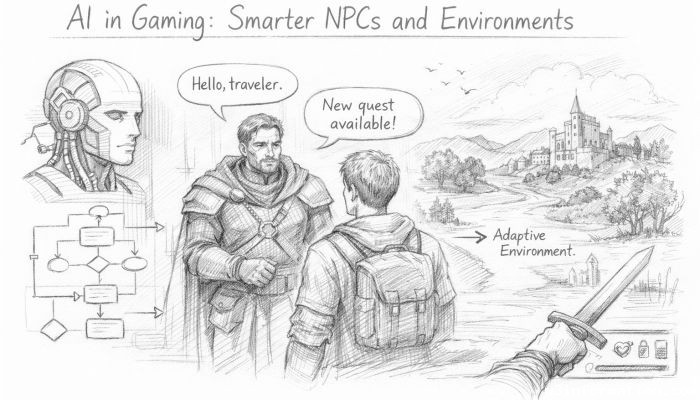 AI in Gaming: Smarter NPCs and Environments
 Understanding Bias in AI Algorithms
 Introduction to Chatbots and Conversational AI
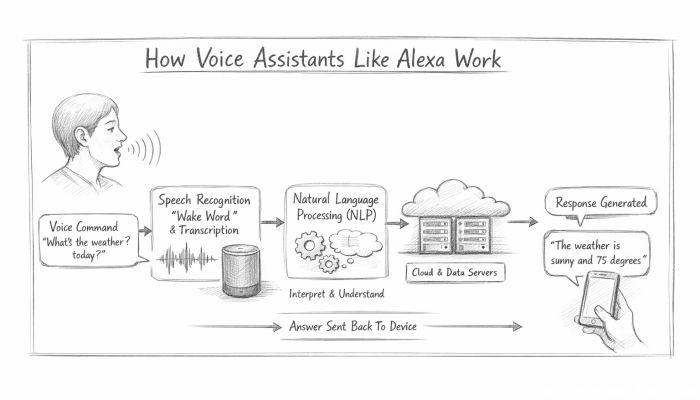 How Voice Assistants Like Alexa Work
 Federated Learning: AI Without Sharing Data