How to start Linux commands
Linux commands are the bread and butter of any developer or system administrator working with open-source operating systems. They let you perform otherwise time-consuming tasks in a flash and require just your keyboard. While the terminal might appear overwhelming or arcane to Linux beginners, running Linux commands is easy once you get the hang of it. This beginner’s guide to Linux commands will show you how to start using Linux commands and provide background on how they work.
- Table of Contents
- Understanding the Linux Terminal and Shell
- Opening the Terminal
- Command Structure
- Navigating Directories with cd
- List files and directories using ls
- Check File Contents with cat, less, head
- Create an Empty File with touch
- Install Applications with Package Managers
- Running Administrative Commands with sudo
- Terminating Processes with kill
- Check Command Manual Pages with man
- Conclusion
- More Related Topics
Table of Contents
* [Understanding the Linux Terminal and Shell](#understanding-the-linux-terminal-and-shell)
* [Opening the Terminal](#opening-the-terminal)
* [Command Structure](#command-structure)
* [Navigating Directories with cd](#navigating-directories-with-cd)
* [List files and directories using ls](#list-files-and-directories-using-ls)
* [Check File Contents with cat, less, head](#check-file-contents-with-cat-less-head)
* [Create an Empty File with touch](#create-an-empty-file-with-touch)
* [Edit a File with a Text Editor](#edit-a-file-with-a-text-editor)
* [View File Permissions and Change Ownership](#view-file-permissions-and-change-ownership)
* [Install Applications with Package Managers](#install-applications-with-package-managers)
* [Running Administrative Commands with sudo](#running-administrative-commands-with-sudo)
* [Terminating Processes with kill](#terminating-processes-with-kill)
* [Check Command Manual Pages with man](#check-command-manual-pages-with-man)
Understanding the Linux Terminal and Shell
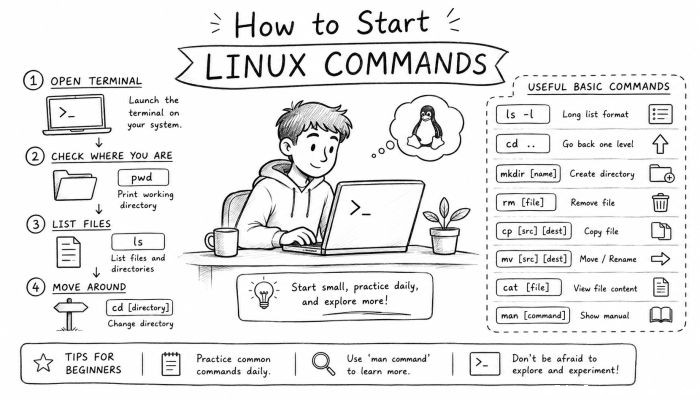
Before you execute your first Linux command, you should understand what the terminal and shell are. When you open the terminal, you are interacting with your shell. Your shell is the program that receives input (commands typed on the keyboard) and executes them. Shells available for Linux include Bash, Bourne again shell, Z shell, and Fish shell, to name a few. Now that you understand the terminal refers to the program you use to interact with the shell using text-based commands.
Opening the Terminal
The first step to learning Linux commands is opening your terminal window. You can open the terminal by searching for “Terminal” in your apps menu or by using keyboard shortcut keys. Once you open it, you’ll notice a prompt that typically looks like this.
A terminal prompt tells you that Linux is waiting for your command. The components of this prompt tell you which user is logged in, what machine you’re logged into, and what your current directory is.
Command Structure
The general syntax for all Linux commands is:
```
command [options] [arguments]
```
* command: The command you want to run.
* options: Also known as flags. Options modify the command’s behavior. They usually start with a dash. `-l` is an option that you can pass to some Linux commands.
* arguments: What the command will manipulate. If you’re using the ls command, your argument will be the name of a directory or file.
Notice how ls -l follows this structure? Now you should be able to recognize when you’re looking at a Linux command.
Navigating Directories with cd
Knowing how to navigate between folders is important if you want to start using Linux commands. The command `cd` allows you to move around directories.
To change directories, you type cd followed by the path to the directory you want to move to. For example, if I want to change to the `/etc` directory, I would type `cd /etc`. Typing cd followed by ".." will move you up one directory. You can always type cd by itself to return to your home directory.
List files and directories using ls
If you just ran `cd /`, you are currently in the root directory. To see what files and directories are in your current directory, you can use the `ls` command.
`ls` will show you the files and directories in your current directory. If you want to see more details about the files and directories listed, you can use the `-l` option. There are quite a few options that you can use with ls. Try running `ls -la` to see what else you can do.
Check File Contents with cat, less, head
Now that you can list directories and files, you might be wondering how to check what’s inside these files. The `cat` command can be used to view file contents.
For larger files, you can use the less command to view one screen of text at a time. If you only want to see the first few lines of a file, use the head command.
cat: Display file contents directly in your terminal window. less: View one screen of text at a time. Useful for large files.head: Show the first few lines of text in a file.
Create an Empty File with touch
To create an empty file, you can use the `touch` command followed by the name of the file you want to create.
touch demo_file
Edit a File with a Text Editor
Once you have created a file, you’ll need to know how to edit it. There are many text editors for Linux. If you are just getting started, try using nano. It’s easy to learn and use.
nano demo_file
View File Permissions and Change Ownership
As you explore your system, you will notice that each file has its own permissions. These permissions determine who can read, write, and execute the file. You can use `chmod` to change a files permissions.
You can also use chmod to change who owns a file. Use the `chown` command to accomplish this.
Note: You will need to run sudo before chown to change a file’s ownership.
Install Applications with Package Managers
Did you know that you can use the terminal to install applications? Instead of navigating to Ubuntu Software and finding the application you want to install, you can install right from the terminal.
To install programs on Linux, you will need to use package managers. Debian-based distributions such as Ubuntu, Pop!_OS, and Linux Mint use apt.
Update the package repository
To install programs, you will first need to update the package repository. Do this by running the following command:
sudo apt update
Install programs
Now that your package manager is up to date, you can install applications. The following command will show you how to install VS Code.
sudo apt install code -y
Running Administrative Commands with sudo
You may have noticed that we had to prefix some of our commands with sudo. Sudo allows a Linux user to run programs with the security privileges of another user, which is normally the administrator or “root” user. Running commands with sudo requires your user password.
Unless you need to specifically install software as the administrator or change application permissions, you shouldn’t have to run commands with sudo.
Terminating Processes with kill
Did you know that you can run multiple processes on Linux at the same time? You can use the ps command to view what programs are currently running.
If you want to see your processes in real-time, you can use the top or htop commands.
You can stop running processes by using the kill command followed by the process ID.
Check Command Manual Pages with man
When learning new commands, you’ll want to know where to find information about the different options you can use. Every Linux command has a manual page that you can view by using the man command.
To view the man page for ls, you would run the following command:
man ls
The man command can take any command as an argument and should be the first place you reference when learning about a command.
Conclusion
Learning how to use the Linux command line is a great skill to have. You can navigate around your filesystem without leaving the terminal window and use commands to manage files and directories. In this guide, we’ve shown you how to start using Linux commands.
Now that you know how to start Linux commands, it’s time to get familiar with them! Start learning some of the most common Linux commands used today. As you learn, start creating cheat sheets so that you can reference them when working on Linux desktops or servers. Before you know it, you’ll be running Linux commands without even thinking about it.
 How to Make the Most of Your Holiday Break
 The Best Winter Destinations for a Cozy Getaway
 How to Organize Your Holiday Travel Plans with Ease
 The Ultimate Guide to Cooking for a Crowd
 How to Make Healthy Comfort Food Without the Guilt
 5 Delicious Vegan Breakfast Ideas You Can Make in Minutes