How to start Git branching
In today’s fast-paced software development environment, mastering Git branching is essential for efficient collaboration, clean code management, and streamlined workflows. Branching in Git allows developers to diverge from the main codebase, work on features, fix bugs, or experiment without disrupting the stable project version. Despite its centrality in modern development, Git branching can seem daunting to beginners due to its command-line nature and conceptual complexity. This article demystifies Git branching by guiding you through its fundamentals, practical applications, best practices, and common pitfalls. Whether you are a developer stepping into version control for the first time or someone looking to refine your Git skills, this comprehensive guide will illuminate how to start Git branching confidently and effectively.
- Understanding Git: The Foundation of Branching
- What is Branching in Git?
- Setting Up Your Git Repository
- Creating Your First Branch
- Switching Between Branches
- Making Changes and Committing on a Branch
- Merging Branches: Bringing Code Together
- Handling Merge Conflicts
- Using Branching Strategies
- Best Practices for Git Branching
- Collaborating with Remote Repositories
- Advanced Branching Tips and Tricks
- Common Pitfalls and How to Avoid Them
- Conclusion: Embracing Git Branching for Efficient Development
- More Related Topics
Understanding Git: The Foundation of Branching
Before diving into branching, it’s crucial to understand Git itself. Git is a distributed version control system designed to track changes in source code during software development. Unlike centralized version control systems, Git allows every developer to have a full copy of the project repository, enabling offline commits and robust branching. Git stores data as snapshots of the entire repository at a point in time, making branching very lightweight and fast compared to other systems. Understanding this architecture is key to appreciating why branching in Git works so seamlessly.
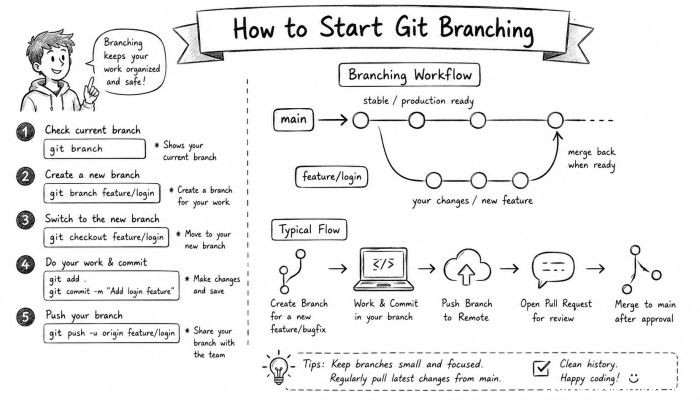
What is Branching in Git?
Branching in Git is essentially creating an independent line of development within a repository. Imagine the main branch (usually named `main` or `master`) as the official history of your project. When you create a branch, Git creates a pointer to a particular commit, allowing you to develop features or fix bugs simultaneously without interfering with the `main` codebase. Branches make parallel development straightforward and safe, enabling teams to work in isolation and integrate changes only when they’re ready.
Setting Up Your Git Repository
To start branching, you first need a Git repository. You can either clone an existing repository or initialize a new one. Use the command `git init` in your project folder to create a new repo, or `git clone ` to copy an existing project. Make sure you have Git installed and your development environment configured. Knowing your project’s repository status with `git status` is also useful before starting any branching operations.
Creating Your First Branch
Creating a branch in Git is simple and quick. The command `git branch ` creates a new branch pointer, but doesn’t switch you to it yet. To create and switch in a single step, you use `git checkout -b ` (or `git switch -c ` in more recent versions of Git). For example, to start working on a new feature called “login”, you’d run `git checkout -b login`. This branch is now your working branch, separated from `main`.
Switching Between Branches
Once you have multiple branches, switching between them is a common task. Use `git checkout ` or `git switch ` to change the active branch. Git updates your working directory to reflect the state of the branch you check out. It’s important to commit or stash your changes before switching branches to avoid conflicts or losing work. This flexibility allows developers to multitask, switching between bug fixes and new features effortlessly.
Making Changes and Committing on a Branch
Once switched to a branch, you can start making changes to your files. Each commit records these changes in the branch’s history. Use `git add ` to stage changes, and `git commit -m "Your message"` to record them. Your commits in the branch won’t affect `main` until you decide to merge. Regular, meaningful commits help maintain clear project history and make future merges smoother.
Merging Branches: Bringing Code Together
After completing work on a feature branch, the next step is merging it back into `main` or another branch. Use `git checkout main` followed by `git merge `. Git will attempt to automatically combine the changes. If there are no conflicting changes, the merge completes smoothly. In case of conflicts, Git will highlight the files needing manual resolution. Merging consolidates development work and ensures that the main branch has the latest features and fixes.
Handling Merge Conflicts
Merge conflicts occur when Git cannot reconcile differences between branches automatically. For example, if two branches change the same lines in a file, you must resolve conflicts manually. Git marks conflicting areas in the file, and you must choose which changes to keep. After editing, add the resolved files and run `git commit` to finalize the merge. While conflicts can seem intimidating, they are a normal part of collaborative development and often indicate overlapping work areas requiring attention.
Using Branching Strategies
Branching strategies help teams organize how branches are created, named, and merged. Popular models like Git Flow, GitHub Flow, and GitLab Flow provide structured workflows that include feature branches, release branches, hotfix branches, and more. Following a strategy ensures clarity on when and how branches should be created and combined. For beginners, starting with a simple GitHub Flow—where the main branch is always deployable and features are developed on short-lived branches—can be effective.
Best Practices for Git Branching
Maintaining clean and manageable branches is critical for effective collaboration. Use clear and descriptive branch names reflecting the purpose, such as `feature/login` or `bugfix/typo`. Keep branches focused; avoid mixing unrelated changes. Commit frequently with meaningful messages. Regularly pull updates from the main branch to reduce future merge issues. Finally, delete branches after merging to keep the repository tidy and prevent confusion.
Collaborating with Remote Repositories
Branching becomes more powerful when you work with remote repositories hosted on platforms like GitHub, GitLab, or Bitbucket. Push your branches to remote with `git push origin ` to share your work. Teammates can review your branch, suggest changes, and merge via pull requests or merge requests. Always fetch and pull updates from remote branches to stay synchronized. Remote collaboration enhances code quality and fosters team communication.
Advanced Branching Tips and Tricks
Once comfortable with basic branching, explore advanced features such as rebasing, squashing commits, and cherry-picking. Rebasing rewrites commit history to create a cleaner, linear narrative. Squashing combines multiple commits into one for clarity. Cherry-picking lets you apply selected commits across branches. These techniques, when used carefully, optimize your repository’s history and collaboration efficiency.
Common Pitfalls and How to Avoid Them
New Git users can stumble over several common branching challenges. Creating branches with uncommitted changes leads to confusion. Forgetting to update your branch before merging can cause unnecessary conflicts. Overly long-lived branches tend to drift far from main, complicating merges. To avoid these issues, commit your changes, regularly synchronize your branches with the latest main, and keep branches short-lived. Learning to recover from mistakes using `git reset`, `git revert`, and `git reflog` is also invaluable.
Conclusion: Embracing Git Branching for Efficient Development
Git branching is more than a technical skill; it is fundamental to collaborative software development, enabling parallel work, safer experimentation, and cleaner project histories. Starting with a solid grasp of Git’s architecture, creating and switching branches, committing changes, merging effectively, and resolving conflicts will build your confidence. Coupled with best practices and a branching strategy tailored to your team’s needs, Git branching can transform how you approach version control. By embracing these techniques, developers of all levels can enhance productivity, reduce errors, and foster a more enjoyable coding experience.
Mastering Git branching unlocks a powerful workflow that keeps your projects organized and your team synchronized. As you gain experience, branching will become a natural, indispensable part of your development toolkit—helping you deliver better software faster and with less stress. So start branching today, and take one more step toward mastering modern software development.
 How to Make the Most of Your Holiday Break
 The Best Winter Destinations for a Cozy Getaway
 How to Organize Your Holiday Travel Plans with Ease
 The Ultimate Guide to Cooking for a Crowd
 How to Make Healthy Comfort Food Without the Guilt
 5 Delicious Vegan Breakfast Ideas You Can Make in Minutes