How to change a file extension
This W3information guide you to get information about how to change a file extension.
File: A file is a folder or a group of documents stored in one unit for easy reference.
File extension: A file extension is an identifier to indicate the name of a computer file. Generally, it is preceded by a full stop with a file format.
To change a file extension
Changing the file extension in the filename is to change the file type. The easiest way to change file extension is to save the file as a different file type. We can change the file extension in some software programs. The file extension in Windows and Mac OS X are hidden, So we can't change the file extensions in Windows and Mac OS X, we can only make it visible them.
Changing file extension in any software program
Step 1: Open a file in a software program like notepad.

Step 2: Then clicks on the File menu at the top of the Menubar, then click on ‘save as'.
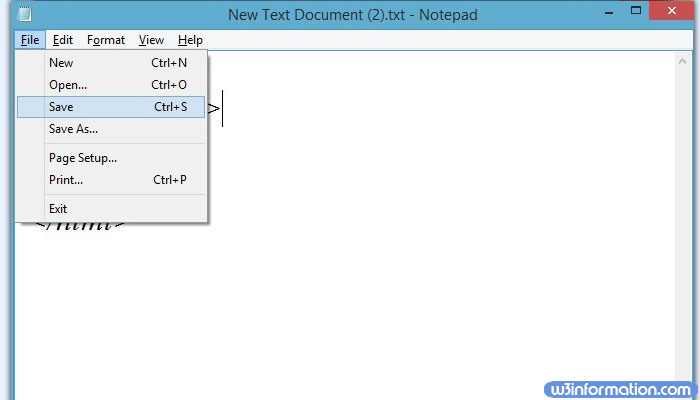
Step 3: Then choose the location to save the file.
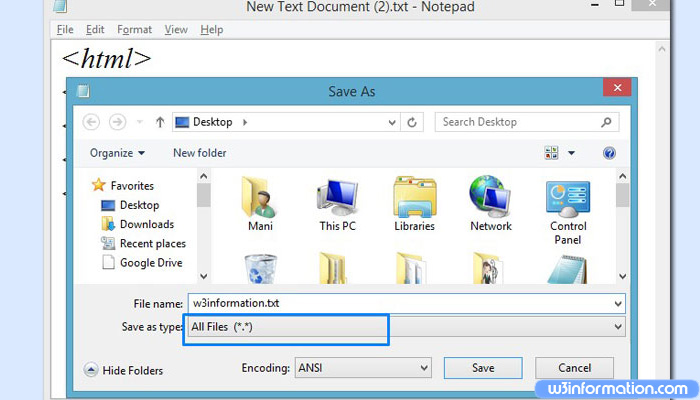
Step 4: Then enter the desired file name.
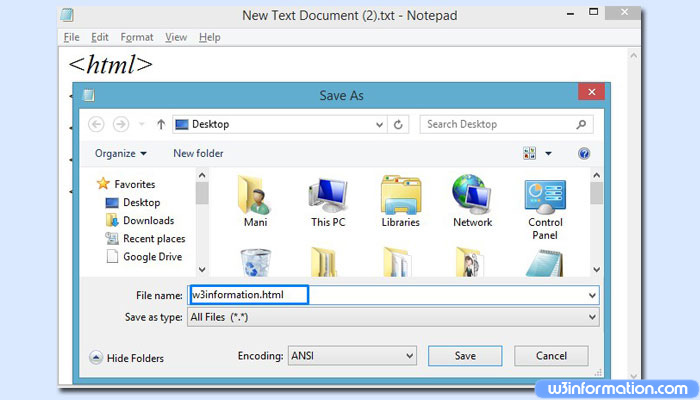
Step 5: In the next column, you can see the dropdown menu labeled save as type or format. There you can choose a new file type for the file. Or You choose all file menu, then type the file format.
Step 6: Then click on the 'save as' button.

Step 7: You can find out the new file.
Making file extensions visible on Windows
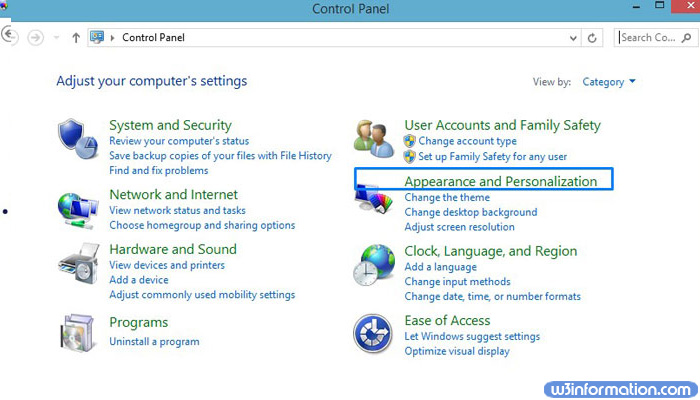
Step 1: Open the control panel in the start menu.
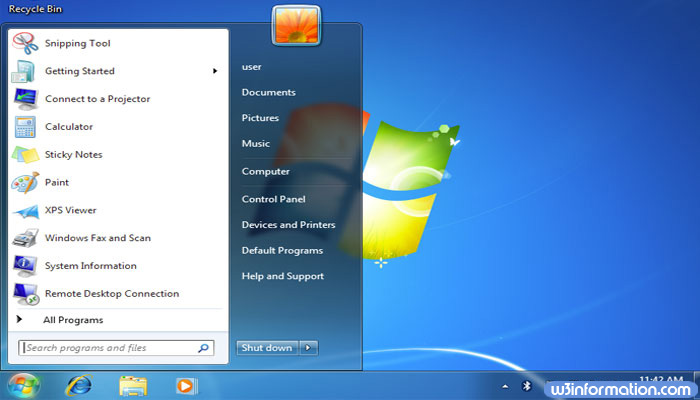
Step 2: And click on appearance and personalization.
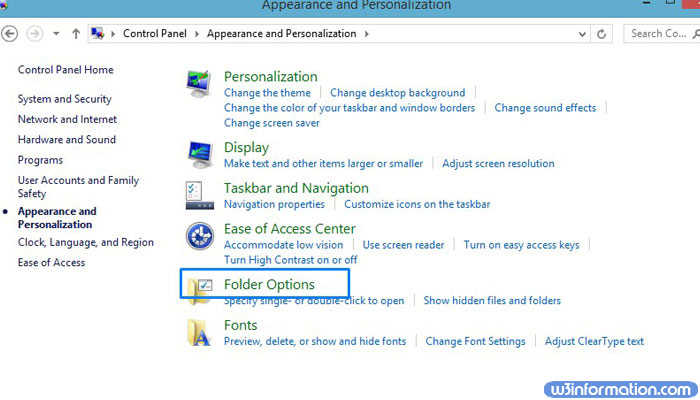
Step 3: Click on folder options.
Step 4: One dialogue box will appear, in that click on 'view' tab.
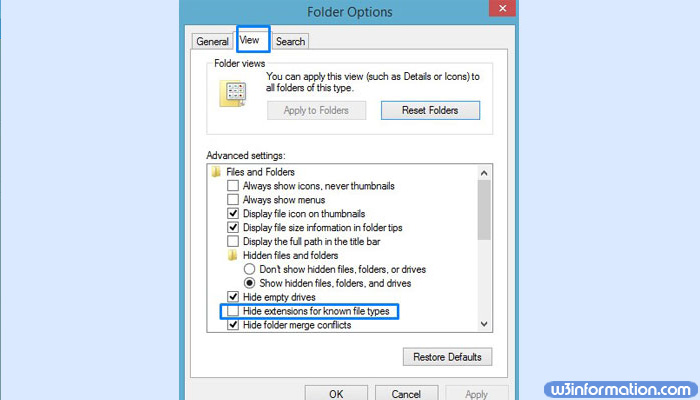
Step 5: In the view tab, in advanced settings, some options will be available that make file extensions visible.
Step 6: To make file extension visible in advanced settings list, uncheck the ‘ Hide extensions for known file types’.
Step 7: Click on 'apply' and then click on 'ok'.
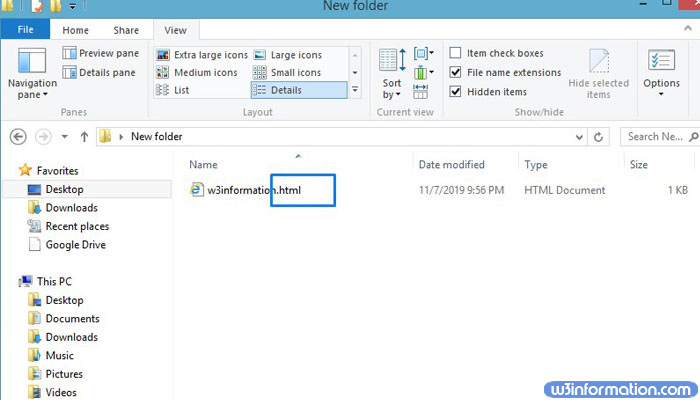
Step 8: Open the Windows Explorer window, the file extensions now you can able see.
Making file extensions visible on Mac OS X
Step 1: Select a Finder window on the desktop.

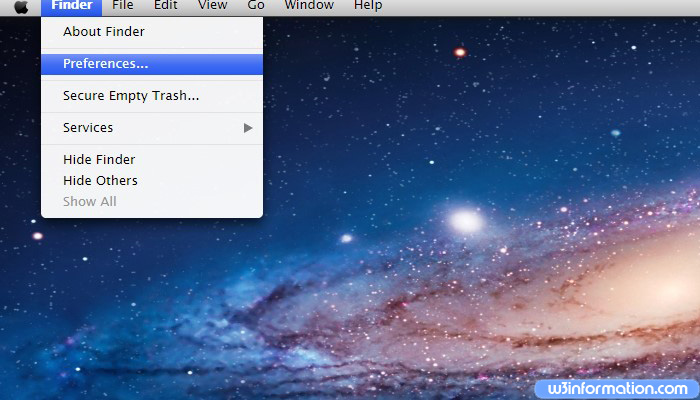
Step 2: Then click on the Finder menu and then click on preferences.
Step 3: In finder preferences window click on 'advanced'.
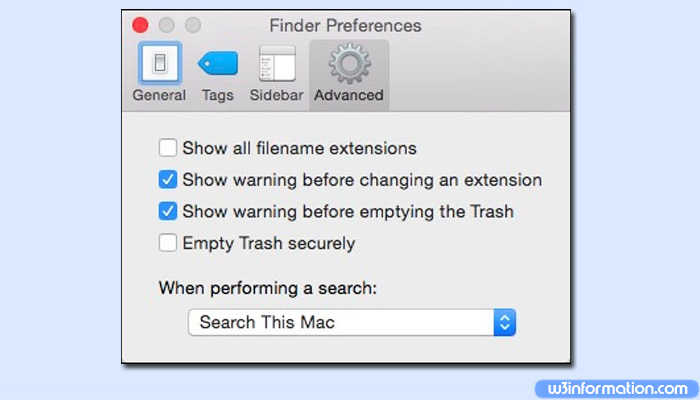
Step 4: Then click on show all filename extensions to add a check.
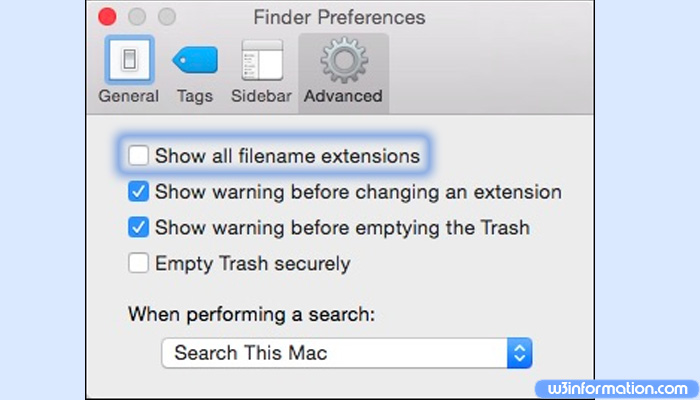
Step 5: Then close the finder preferences window.
 How to Make the Most of Your Holiday Break
 The Best Winter Destinations for a Cozy Getaway
 How to Organize Your Holiday Travel Plans with Ease
 The Ultimate Guide to Cooking for a Crowd
 How to Make Healthy Comfort Food Without the Guilt
 5 Delicious Vegan Breakfast Ideas You Can Make in Minutes