Mobile Operating System Customization Tips
In today’s fast-paced digital world, our mobile devices have become more than just communication tools—they are extensions of ourselves. The mobile operating system (OS) that powers our smartphones and tablets plays a pivotal role in shaping user experience, dictating everything from the interface layout to app performance and security features. Thankfully, whether you’re using Android or iOS, most modern OS platforms offer a plethora of customization options that allow users to tailor their devices to match their personal preferences, productivity needs, and aesthetic tastes. This article delves deep into practical and creative mobile OS customization tips that can transform your device into a uniquely personalized digital companion. Whether you're a tech novice or a seasoned user, these insights aim to enhance usability, efficiency, and enjoyment while staying within the bounds of system stability and security.
- Understanding Your Mobile Operating System’s Capabilities
- Personalizing Home Screens and App Layouts
- Using Widgets to Boost Productivity and Aesthetics
- Custom Launcher Applications: A Gateway to Limitless Creativity
- Icon Packs and Custom App Icons: Crafting a Unique Visual Identity
- Applying Themes for Consistent and Immersive Experiences
- Customizing Notifications and Sounds for a Personalized Interface
- Organizing Apps and Using Folders for Enhanced Efficiency
- Adjusting Display Settings: Fonts, Colors, and Dark Mode
- Utilizing Shortcuts and Automation to Streamline Daily Tasks
- Securing Your Customizations: Backup and Safety Measures
- Exploring Developer Options and Advanced Customization
- Conclusion
- More Related Topics
Understanding Your Mobile Operating System’s Capabilities
Every mobile OS, be it Android, iOS, or a variant such as OxygenOS or One UI, comes with its own set of customization capabilities and limitations. Recognizing these boundaries is the first step in effective customization. Android, known for its open-source nature, offers extensive freedom to modify various elements such as home screens, widgets, and app permissions. In contrast, iOS prioritizes streamlined user experience with more controlled customization options but has gradually expanded its features with the introduction of widgets, custom app icons, and shortcuts. Knowing what your OS allows helps you plan your customization approach efficiently and avoid unnecessary trial-and-error with third-party apps or system modifications.

Personalizing Home Screens and App Layouts
The home screen is your device’s command center and the most visible aspect of your mobile experience. Both Android and iOS allow users to reorganize app icons, add widgets, and even create folders for optimized app access. Android users can exploit third-party launchers like Nova Launcher or Lawnchair to further modify icon sizes, grid layouts, and gesture controls. On iOS, recent updates enable users to place widgets directly on home screens, providing live information at a glance. Customizing the home screen to suit your workflow or visual preference not only improves aesthetics but also enhances efficiency by reducing time spent searching for apps.
Using Widgets to Boost Productivity and Aesthetics
Widgets are mini-applications that display key data on your home screen, such as weather updates, calendar events, or fitness stats. Leveraging widgets effectively can drastically improve productivity by offering information at a glance without the need to open apps. Android’s long history with widgets allows diverse and interactive options, whereas iOS’s newer widget implementation supports different sizes and stacks that can be flipped through. Custom widget apps like KWGT (for Android) and Widgetsmith (for iOS) enable users to design personalized widgets that complement their device’s overall theme or brand identity.
Custom Launcher Applications: A Gateway to Limitless Creativity
For Android users, custom launchers offer one of the most powerful customization avenues. Launchers replace your device’s default home screen with entirely new interfaces that can mimic other OS styles, offer gesture controls, enhanced themes, and intricate icon packs. Popular launchers like Nova Launcher, Microsoft Launcher, and Action Launcher provide robust options for adjusting animations, scroll effects, and app drawer behavior. Beyond just visuals, these launchers also boost functionality, empowering users with shortcuts and integrations that streamline daily interactions with their device.
Icon Packs and Custom App Icons: Crafting a Unique Visual Identity
The appearance of app icons influences the overall look and feel of your device. Both Android and iOS support custom app icons, but with different approaches. On Android, users can apply icon packs through launchers or use apps to create individual icons, transforming the device into a unique artistic statement. iOS users, meanwhile, can harness the Shortcuts app to assign custom icons for apps, though it involves launching apps through a shortcut with a custom image. By selecting color-coordinated or thematic icon sets, users create visual harmony or playful contrasts that make interacting with their device more enjoyable.
Applying Themes for Consistent and Immersive Experiences
Themes provide cohesive visual styles that affect wallpapers, icons, fonts, and even system sounds. Android systems often come with built-in theme stores or allow downloading custom themes via manufacturer interfaces like Samsung’s One UI Themes or Xiaomi’s MIUI Themes. These themes help unify the appearance and mood of your phone—from minimalistic and professional looks to vibrant and playful designs. Meanwhile, iOS offers less direct theming capability but can simulate themes using combinations of wallpapers, widgets, and custom icons to recreate a consistent visual story.
Customizing Notifications and Sounds for a Personalized Interface
Notifications and sounds form an essential part of user-device interaction. Tailoring notification styles, vibration patterns, and alert tones can significantly improve the user experience by making alerts more distinguishable and less intrusive. Both Android and iOS allow per-app notification control, but Android often offers deeper customization such as notification channel prioritization and floating notifications. Sound customization includes setting unique ringtones, alert tones, and even voice feedback. Incorporating subtle soundscapes or silent modes can help make the device less distracting in professional or social settings.
Organizing Apps and Using Folders for Enhanced Efficiency
An often overlooked aspect of customization is app organization. Properly grouping apps into folders based on usage, such as “Work,” “Entertainment,” or “Finance,” makes navigation quicker and declutters your interface. Both Android and iOS enable easy folder creation, but Android often allows more nuanced sorting options and the ability to rename folders freely. Combining folders with smart widgets or app suggestions based on location and time can create a dynamic and context-aware experience that adapts to your daily routine.
Adjusting Display Settings: Fonts, Colors, and Dark Mode
Display customization changes not only improve aesthetics but also affect comfort, especially during prolonged device use. Most mobile OSs allow font size and style adjustments to enhance readability. Color settings, like the accent hues and system-wide color schemes, can be customized to match personal taste or accessibility needs. Dark mode, now standard across Android and iOS, reduces eye strain in low-light environments and can extend battery life on OLED screens. Exploring advanced display settings such as blue light filters or adaptive brightness helps make the user interface both beautiful and gentle on the eyes.
Utilizing Shortcuts and Automation to Streamline Daily Tasks
Beyond visual changes, functional customization through automation takes personalization to the next level. Both Android and iOS offer automation tools—Google’s Routines and Apple’s Shortcuts—that allow users to create conditional commands like “Turn on Do Not Disturb when I open the Book app” or “Send a message when I arrive at work.” These automations save time and reduce manual effort, making your device respond intelligently to your behavior and needs. By customizing shortcut actions and automations, your device becomes a proactive assistant, anticipating tasks and streamlining workflows.
Securing Your Customizations: Backup and Safety Measures
Customizing your mobile OS often involves changing system elements and installing third-party apps, which can introduce stability or security risks. Regularly backing up your settings and data—using cloud services or device backup tools—ensures that your customizations can be recovered if something goes wrong. On Android, apps like Titanium Backup (for rooted devices) or built-in backup services help preserve configurations, while iOS users benefit from iCloud backups and encrypted exports. Additionally, only downloading apps and themes from trusted sources and keeping your system updated protects your personalized experience against malware and glitches.
Exploring Developer Options and Advanced Customization
For users keen on deep customization, exploring Developer Options (available on both Android and iOS through different means) can unlock further potential. These hidden settings enable users to tweak animation scales for faster transitions, adjust USB debugging, or simulate various device conditions. While tinkering with developer settings requires caution, it can dramatically improve device responsiveness and tailoring. Advanced users can also explore rooting or jailbreaking their devices, though these come with significant risks and are generally not recommended unless you understand the implications fully.
Conclusion
Customizing your mobile operating system is much more than an aesthetic endeavor; it’s a means of molding your device to better serve your lifestyle, preferences, and productivity goals. From personalizing home screens and icons to leveraging widgets, automation, and advanced developer tweaks, the options available today empower users to craft a truly unique digital experience. While Android and iOS offer different levels and methods of customization, both platforms provide sufficient tools to elevate user satisfaction and efficiency. By embracing thoughtful customization backed by security and regular backups, users can unlock the full potential of their devices, making technology not only more functional but deeply personal—a seamless extension of their identity in the digital age.
 Big O Notation Explained for Beginners
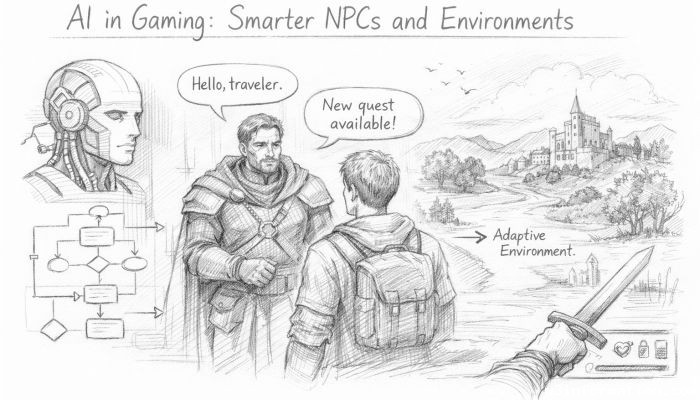 AI in Gaming: Smarter NPCs and Environments
 Understanding Bias in AI Algorithms
 Introduction to Chatbots and Conversational AI
 How Voice Assistants Like Alexa Work
 Federated Learning: AI Without Sharing Data