How to Set Up Parental Controls on Mobile
In today’s rapidly evolving digital landscape, mobile devices have become integral to our daily lives, especially for children and teenagers. While these gadgets offer immense educational and entertainment value, they also expose young users to potential risks such as inappropriate content, excessive screen time, and online predators. This is where parental controls come into play—tools that empower parents to manage and monitor their children’s mobile activities, ensuring safe and responsible usage. Setting up parental controls on a mobile device requires understanding the available options, selecting appropriate tools, and tailoring restrictions to suit each child’s needs. This guide will take you through everything you need to know, from the basics of parental controls to platform-specific steps, third-party apps, and best practices to create a secure digital environment for your family.
- Understanding Parental Controls: What Are They and Why Are They Important?
- Assessing Your Child’s Age and Needs
- Built-in Parental Controls on Android Devices
- Built-in Parental Controls on iOS Devices
- Customizing Content Filters for Safe Browsing
- Managing App Access and Purchases
- Setting Time Limits to Combat Screen Addiction
- Monitoring and Reviewing Device Activity
- Using Third-Party Parental Control Applications
- Setting Location Tracking and Emergency Alerts
- Privacy and Ethical Considerations for Parents
- Troubleshooting Common Issues and Ensuring Compliance
- Conclusion
- More Related Topics
Understanding Parental Controls: What Are They and Why Are They Important?
Parental controls are features or software designed to help parents regulate their children’s access to mobile devices and the internet. They can filter inappropriate content, impose time limits on device usage, control app installations, and monitor online interactions. These controls are crucial because children often lack the judgment necessary to navigate online spaces safely, making them vulnerable to harmful content or cyberbullying. Establishing parental controls helps cultivate digital responsibility, protect privacy, and safeguard mental health by reducing exposure to undesirable activities.
Assessing Your Child’s Age and Needs
Not all parental controls are one-size-fits-all. The setup must correspond with your child’s age, maturity level, and the kind of exposure you deem acceptable. For younger children, strict content filters and time limits are essential, while teenagers might benefit more from guidance and occasional monitoring. Understanding your child’s digital habits and discussing online safety openly will help you configure parental controls effectively, fostering trust and open communication.
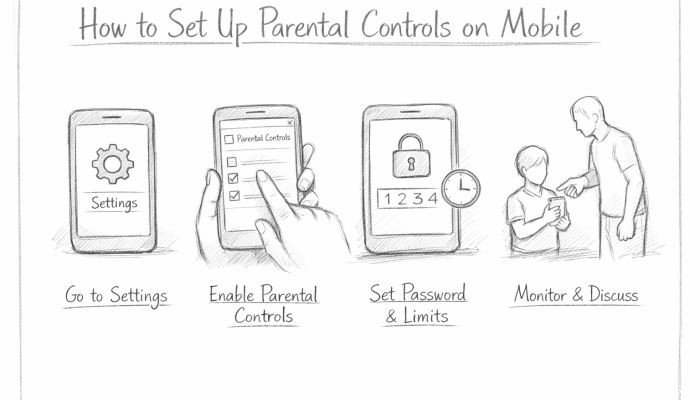
Built-in Parental Controls on Android Devices
Android devices come with native parental control features accessible via Google Family Link. This free app allows parents to create supervised accounts for children under 13 (or the applicable minimum age by region). Through Family Link, parents can approve or block app downloads, set daily screen time limits, lock the device remotely, and view activity reports. The app also supports location tracking. Setting up Family Link involves creating a Google account for your child, linking it to yours, and customizing controls based on your preferences.
Built-in Parental Controls on iOS Devices
Apple’s iOS offers a robust set of parental controls under the “Screen Time” feature. Accessible through Settings, Screen Time lets parents monitor app usage, set downtime schedules, restrict explicit content, and control privacy settings. Additionally, the “Ask to Buy” function requires children to get approval for app purchases. With Family Sharing, multiple devices can be managed together, providing a seamless way to oversee the entire family’s device usage. Enabling these settings requires no external apps and integrates smoothly with the iPhone or iPad ecosystem.
Customizing Content Filters for Safe Browsing
Regardless of platform, enabling content filters in browsers is a vital step. Both Android and iOS devices allow parents to restrict access to adult content on Safari, Chrome, or other popular browsers. For more granular control, apps like Google SafeSearch can be activated to filter out explicit search results. These measures prevent accidental or intentional viewing of inappropriate websites and protect children from harmful digital environments.
Managing App Access and Purchases
Mobile apps are a primary source of entertainment and interaction for young users. However, they can also harbor risks such as in-app purchases and exposure to unmoderated content. Parental controls enable you to restrict app downloads, block explicit or age-inappropriate apps, and require authentication for any purchase. On Google Play and Apple’s App Store, you can set PIN codes or passwords that must be entered to authorize downloads or spending, thereby preventing unauthorized or impulsive transactions.
Setting Time Limits to Combat Screen Addiction
One significant concern for many parents is managing the amount of time children spend on their mobile devices. Both Android Family Link and iOS Screen Time allow you to set daily limits on app usage or total screen time. These controls are essential to prevent screen addiction, promote a balanced lifestyle, and encourage offline activities. By setting break intervals and downtime, parents help children establish healthy digital habits and reduce eye strain and sleep disruption.
Monitoring and Reviewing Device Activity
Besides setting restrictions, it’s important to keep an eye on your child’s mobile device activity to identify potential issues early. Many parental control tools provide detailed reports outlining screen time, app usage, and browsing history. Regularly reviewing these reports enables parents to understand behavioral patterns, address problematic apps, and engage their children in constructive conversations about responsible technology use.
Using Third-Party Parental Control Applications
Beyond native options, numerous third-party apps augment parental control capabilities with advanced features. Apps like Qustodio, Norton Family, and Bark offer comprehensive monitoring, including social media oversight, text message filtering, and real-time alerts for suspicious activity. These applications often come with subscription fees but provide enhanced analytics and customization, making them suitable for parents seeking deeper control over their child’s mobile experience.
Setting Location Tracking and Emergency Alerts
Safety extends beyond content control. Many parental control solutions integrate GPS tracking to monitor your child’s whereabouts in real-time. Features such as geo-fencing allow parents to set safe zones and receive notifications if their child leaves these areas. Emergency alert functions enable kids to send distress signals if they encounter danger. These tools offer peace of mind and improve family safety, particularly for older children who have autonomous mobility.
Privacy and Ethical Considerations for Parents
While parental controls are designed to protect, balance is necessary to respect children’s privacy and autonomy. Open communication about the purpose and extent of monitoring fosters trust and reduces resentment. Parents should consider gradually easing restrictions as their child matures, emphasizing education about online risks and self-regulation instead of strict surveillance alone. Ethical use of parental controls involves a partnership approach rather than an authoritarian one.
Troubleshooting Common Issues and Ensuring Compliance
Setting up parental controls can sometimes lead to technical challenges or conflicts with system updates. It’s important to keep apps and device software up-to-date and understand how changes affect existing restrictions. Additionally, discussing the setup process with your child reduces attempts to bypass controls. If problems like app crashes or disabled settings occur, consulting support forums, official help centers, or customer service can provide quick solutions.
Conclusion
In the age of smartphones and tablets, protecting children from the internet’s potential hazards is a critical responsibility for parents. Setting up parental controls on mobile devices offers a powerful way to filter content, manage screen time, oversee app usage, and ensure safe digital interactions. By choosing the right combination of built-in features, third-party apps, and clear communication, parents can foster a secure and balanced online environment. Importantly, parental controls should evolve with your child’s maturity, aiming not just to restrict, but to educate and empower responsible digital citizenship. Through thoughtful implementation, parental controls can transform mobile technology from a source of concern into a tool for growth, learning, and safe exploration.
 How to Make the Most of Your Holiday Break
 The Best Winter Destinations for a Cozy Getaway
 How to Organize Your Holiday Travel Plans with Ease
 The Ultimate Guide to Cooking for a Crowd
 How to Make Healthy Comfort Food Without the Guilt
 5 Delicious Vegan Breakfast Ideas You Can Make in Minutes