How to Set Up Mobile Hotspot on Your Phone
In an increasingly connected world, having reliable internet access on the go has become indispensable. Mobile hotspots provide a convenient solution to stay online when traditional Wi-Fi networks are unavailable. Whether you want to browse the web, stream videos, or work remotely, turning your smartphone into a portable Wi-Fi router can keep multiple devices connected anywhere you have cellular service. Setting up a mobile hotspot on your phone is a straightforward process but knowing how to do it efficiently and securely ensures the best performance and protects your data. This article will guide you through everything you need to know about enabling and using mobile hotspots on your smartphone, covering various operating systems, settings, usage tips, and troubleshooting techniques. By the end, you’ll have the confidence to transform your phone into a powerful internet gateway anytime, anywhere.
- What is a Mobile Hotspot?
- Differences Between Mobile Hotspot and Tethering
- Checking Your Data Plan and Carrier Support
- Enabling Mobile Hotspot on Android Phones
- Enabling Mobile Hotspot on iPhones
- Customizing Hotspot Settings for Optimal Performance
- Connecting Devices to Your Mobile Hotspot
- Monitoring Data Usage and Managing Limits
- Optimizing Battery Life While Using Hotspot
- Troubleshooting Common Mobile Hotspot Issues
- Security Tips to Protect Your Mobile Hotspot
- Alternatives and Enhancements: Dedicated Mobile Hotspot Devices
- Future Trends in Mobile Hotspot Technology
- Conclusion
- More Related Topics
What is a Mobile Hotspot?
A mobile hotspot is a feature on smartphones and other cellular devices that allows them to share their cellular data connection with other Wi-Fi-enabled devices, such as laptops, tablets, or other phones. Essentially, your phone acts as a mini wireless router, broadcasting a Wi-Fi signal that other devices can connect to. This is particularly useful when you’re traveling, in areas without stable Wi-Fi, or in emergencies when you need reliable internet access. Hotspots enable multiple devices to share your phone’s cellular data, making it an indispensable tool for remote work, entertainment, or social communication.
Differences Between Mobile Hotspot and Tethering
The terms "mobile hotspot" and "tethering" often confuse users, but they have slight distinctions. Tethering broadly refers to sharing your phone’s internet connection with another device and can be done via USB cable, Bluetooth, or Wi-Fi. A mobile hotspot is specifically the Wi-Fi method of tethering, where your smartphone creates a wireless network. While USB tethering requires a physical connection and Bluetooth tethering provides a low-power alternative, mobile hotspots are preferred for their convenience and ability to support multiple device connections simultaneously without cables.
Checking Your Data Plan and Carrier Support
Before setting up a mobile hotspot, it’s vital to confirm that your mobile carrier supports hotspot functionality on your plan. Some carriers offer hotspot usage as part of unlimited plans, while others may limit the amount of data you can use or require an additional fee for hotspot access. Checking your data allowance is crucial because data used via hotspot counts toward your monthly cellular data limit and can quickly add up if multiple devices connect and consume bandwidth. Review your carrier’s terms or contact customer service to avoid unexpected charges.
Enabling Mobile Hotspot on Android Phones
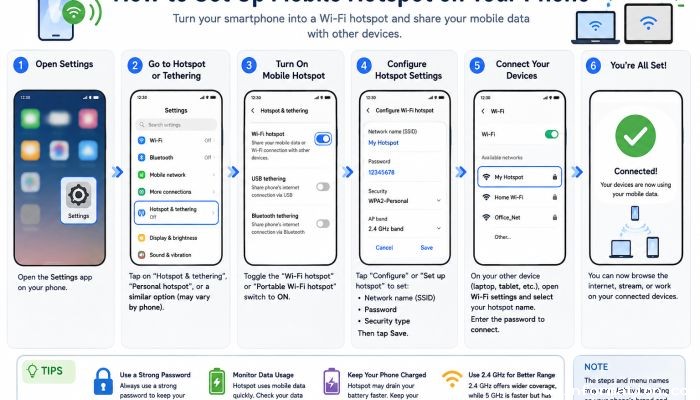
To activate your mobile hotspot on an Android phone, start by opening the Settings app and navigating to the “Network & Internet” or “Connections” section, depending on your device’s manufacturer and Android version. Tap on “Hotspot & tethering” or a similar label, then choose “Wi-Fi hotspot.” Toggle the feature on. You’ll often have options to customize the hotspot—such as changing the network name (SSID), password, and security type (WPA2 is standard and recommended). Once enabled, your phone broadcasts the Wi-Fi network that other devices can join by entering the password you set.
Enabling Mobile Hotspot on iPhones
On an iPhone, setting up a mobile hotspot is equally user-friendly. Head to “Settings,” then select “Personal Hotspot.” Tap “Allow Others to Join” to enable the feature. You can adjust the Wi-Fi password here to keep your hotspot secure. Once activated, the iPhone begins broadcasting its cellular connection as a Wi-Fi network. Nearby devices can detect the network and join by entering the password. iPhones also show a blue status bar or a blue bubble at the top of the screen when the hotspot is active and devices are connected.
Customizing Hotspot Settings for Optimal Performance
Tweaking your hotspot settings helps balance speed, security, and battery life. Adjust the network name (SSID) to something recognizable but not overly personal to avoid unwanted attention. Use a strong, complex password to protect your connection from unauthorized users, ideally WPA2 or WPA3 encrypted. Many phones allow you to limit the number of connected devices to avoid network congestion and speed decreases. You might also find advanced options such as turning off hotspot automatically when no devices are connected or setting timeout durations. These features help optimize functionality and conserve your phone’s battery.
Connecting Devices to Your Mobile Hotspot
After setting up the hotspot, connecting devices is as simple as joining any Wi-Fi network. On your secondary device—whether it's a laptop, tablet, or another phone—go to its Wi-Fi settings and locate the mobile hotspot’s network name. Select it and enter the password you created. Once connected, the device will use your phone’s cellular data to access the internet. Remember that hotspot connections might not be as fast or stable as fixed broadband Wi-Fi, depending on your cellular signal strength and network congestion.
Monitoring Data Usage and Managing Limits
Managing data consumption on your mobile hotspot is essential to avoid unexpectedly exhausting your data plan. Smartphones typically provide a data usage dashboard where you can view how much cellular data has been used, both overall and specifically for hotspot tethering. Set up alerts or limits if your device or carrier supports them. For heavy users, knowing which connected devices use the most data and what activities (like streaming or downloading large files) contribute to high data use can help you make smarter decisions to conserve bandwidth and avoid throttling or extra charges.
Optimizing Battery Life While Using Hotspot
Running a mobile hotspot significantly drains your smartphone’s battery as the device maintains both the cellular data connection and Wi-Fi broadcast. To prolong battery life while tethering, consider reducing the screen brightness, disabling unnecessary background apps, or engaging battery saver modes if available. If practical, connect your phone to a charger during hotspot use, especially for extended sessions. Some phones offer specific hotspot power-saving settings, such as automatic shutdown after periods of inactivity. These tips help you get the most out of your phone without unexpected shutdowns when you need connectivity most.
Troubleshooting Common Mobile Hotspot Issues
Encountering problems with your hotspot is not uncommon, but most issues can be resolved quickly. If devices can’t detect your hotspot, double-check that the feature is enabled and broadcasting. Restarting your phone can sometimes clear network glitches. If connected devices fail to access the internet, verify the cellular signal strength and that your data plan is active. Resetting network settings on your phone may solve persistent problems, but remember this removes saved Wi-Fi passwords and Bluetooth pairings. If data speeds are slow, moving to an area with better network coverage or limiting the number of connected devices can help.
Security Tips to Protect Your Mobile Hotspot
Security is paramount when using your phone as a hotspot, especially in public or semi-public spaces. Use a strong password with a mix of letters, numbers, and symbols to prevent unauthorized access. Avoid using open or unsecured networks without passwords. Regularly update your phone’s operating system to patch any vulnerabilities. Disable the hotspot when not in use to reduce exposure. Some devices allow you to whitelist specific MAC addresses, ensuring only authorized devices can connect. These practices safeguard your data, protect your privacy, and prevent potential data theft or malicious attacks via the hotspot network.
Alternatives and Enhancements: Dedicated Mobile Hotspot Devices
While smartphones make convenient hotspots, dedicated mobile hotspot devices (also called MiFi devices) offer benefits such as longer battery life, better wireless range, and support for more simultaneous connections. These standalone gadgets connect to cellular networks independently and create Wi-Fi networks for your devices. Dedicated hotspots can also offer more advanced features like external antenna support, extended security controls, and data usage reports. If you frequently rely on mobile internet in remote locations or for multiple users, investing in a dedicated hotspot device might better suit your needs than using your phone alone.
Future Trends in Mobile Hotspot Technology
Mobile hotspot technology continues evolving alongside advancements in cellular networks like 5G and upcoming 6G. Faster and more reliable network speeds will enhance hotspot performance, reducing latency and increasing bandwidth. Integration with smart devices and IoT ecosystems will allow seamless and intelligent hotspot activation based on context and usage patterns. Enhanced security protocols and AI-based threat detection will provide safer connection environments. Additionally, the gradual adoption of eSIM technology facilitates more flexible data plans, allowing easier switching between carriers for optimized coverage when tethering. Staying informed about these trends helps users leverage future hotspot capabilities efficiently.
Conclusion
Mastering how to set up and manage a mobile hotspot transforms your smartphone into a versatile tool that ensures you stay connected wherever you go. This article has outlined what a mobile hotspot is, how it differs from other tethering methods, and how to enable it on Android and iOS devices. Paying attention to carrier plans and data limits prevents costly surprises, while customizing settings enhances performance, security, and battery life. Understanding device connectivity, monitoring data usage, and troubleshooting common issues make for a smooth experience. Finally, considering dedicated hotspot devices or anticipating future enhancements empowers you to choose the best connectivity solutions for your lifestyle. With these insights, you can confidently harness the power of mobile hotspots and stay online seamlessly in our wireless world.
 How to Make the Most of Your Holiday Break
 The Best Winter Destinations for a Cozy Getaway
 How to Organize Your Holiday Travel Plans with Ease
 The Ultimate Guide to Cooking for a Crowd
 How to Make Healthy Comfort Food Without the Guilt
 5 Delicious Vegan Breakfast Ideas You Can Make in Minutes